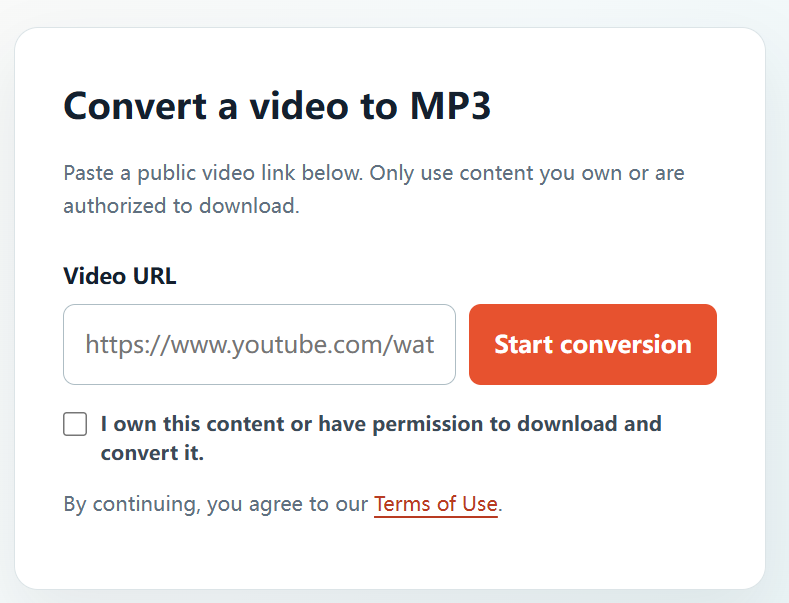
An audio file can make approved spoken-word content easier to review, catalog, or incorporate into a permitted edit. YTBMP3.NET turns the video-to-audio step into a simple browser workflow for users with the necessary rights.
Decide whether an audio file is appropriate
Audio extraction is best suited to your own recordings, licensed interviews, public-domain sources, or work where the creator has granted permission. Make sure any music, voice, or contributor permissions also cover the use you have planned.
Turn an authorized video into audio
- Open the permitted public YouTube video.
- Copy the complete URL.
- Paste it into the converter on the YTBMP3.NET homepage.
- Confirm that you own the content or have permission.
- Start conversion and wait for processing to finish.
- Download the MP3 audio file when it becomes available.
Audio project tips
- Check the finished MP3 before publishing or editing with it.
- Use a sensible file name that identifies the source and project.
- Keep approval records with your production files.
- Leave the browser open until the file is ready.
Use the audio only as permitted
Separate audio does not remove any copyright, privacy, or contractual limits from the original video. Use it only for the purpose your permission or licence allows.
Frequently asked questions
Can I use an audio file for a podcast?
Only when the video owner and any other relevant rights holders have authorized that specific use.
Is a public link enough?
No. A public link alone does not provide copying or reuse rights.