Creators often need an audio-only copy of a video they published themselves. This can be useful for reviewing narration, preparing a podcast edit, or organizing project assets. Your own upload is one of the clearest cases for an authorized conversion.
Confirm that you control the underlying content
Owning a channel is not always enough if a video includes licensed music, third-party clips, or collaborator contributions. Check that your intended MP3 use is covered by the rights you hold or the permissions you received.
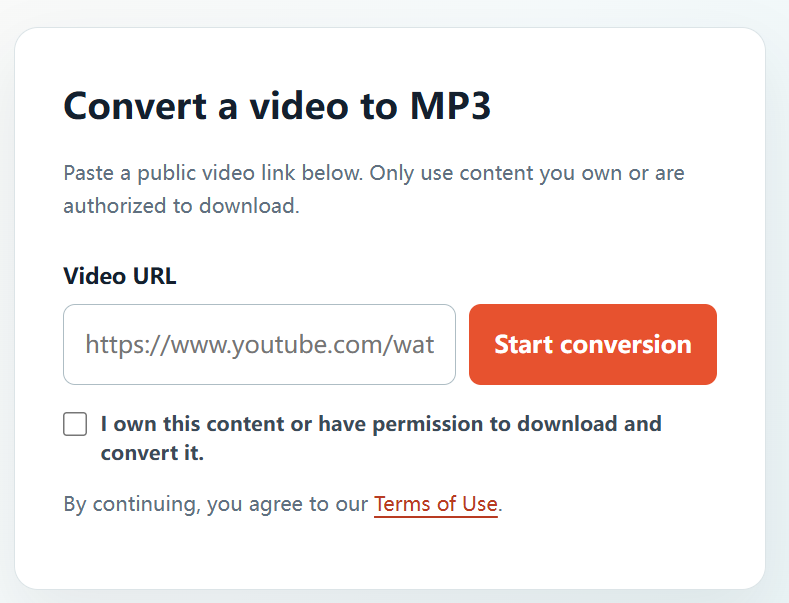
Extract audio from your own upload
- Open your public YouTube upload.
- Copy the complete URL from the address bar.
- Go to YTBMP3.NET and paste the link into the converter.
- Confirm that you own the content or have permission to convert it.
- Start conversion and keep the page open while the MP3 is prepared.
- Download the audio and store it with the relevant project files.
Creator archive tips
- Keep the original source recording as the master archive.
- Label the MP3 with the project name and recording date.
- Store licences for any music or guest contributions with your project.
- Review audio quality before using the MP3 in a new edit.
Reuse audio carefully
An audio-only copy may still be subject to agreements with collaborators, clients, and music licensors. Make sure your new use stays within those agreements.
Frequently asked questions
Can I extract audio from my own channel video?
Yes, when you own or control the necessary audio and video rights.
What if my video includes licensed music?
Check the licence terms before creating or reusing an MP3 from the upload.