You do not need to install a separate Windows application to use YTBMP3.NET. The converter works in a modern desktop browser, making it a convenient option when you need an MP3 from an approved video project, licensed media, or your own YouTube upload.
What you need on Windows
You need a current browser, a stable internet connection, and the complete public URL for the video you are allowed to convert. You do not need to install software or browser extensions for the YTBMP3.NET workflow.
Before you begin, make sure your ownership, licence, or written permission covers the MP3 conversion and your intended use of the audio file.
Convert an authorized YouTube video on Windows
- Open your video. In your Windows browser, open the public YouTube video that you own or are permitted to use.
- Copy the URL. Copy the complete video address from the address bar or Share menu.
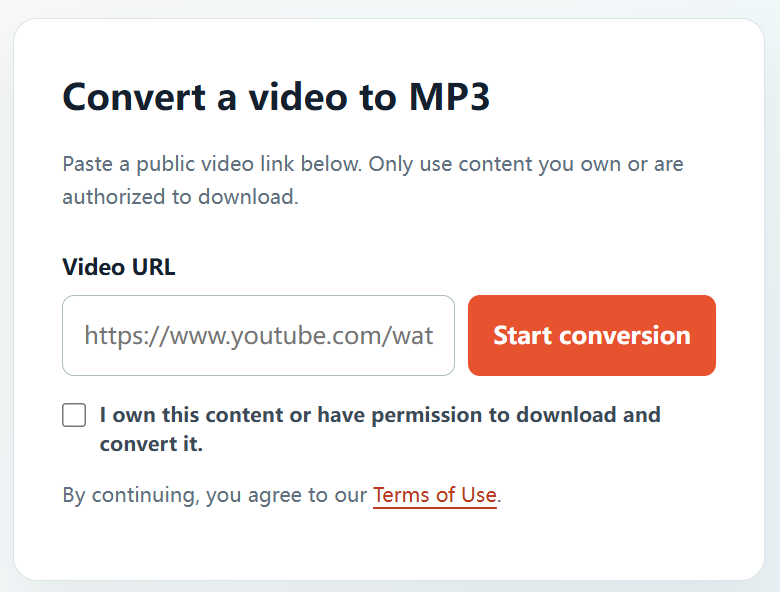
- Open YTBMP3.NET. Visit the homepage converter and paste the URL into the Video URL field.
- Confirm your rights. Tick the confirmation box after verifying your permission to download and convert the video.
- Start conversion. Select Start conversion and leave the browser page open while the MP3 is prepared.
- Save the MP3. When the download button appears, select it and choose where to save the file on your Windows computer.
Windows download tips
- Check your browser’s Downloads folder if you cannot immediately find the completed MP3.
- Use a descriptive filename for your authorized project audio after downloading.
- Keep the browser tab open until conversion has completed, especially for long videos.
- Keep the original source file if it is available; it is generally the best option for editing and archiving.
Use your MP3 within the licence
Use the downloaded MP3 only as permitted by your ownership, agreement, or licence. Do not use a converter to bypass access controls, download private content, or copy unlicensed material. Saving your rights documentation with the file is a good practice for work and creative projects.
Frequently asked questions
Do I need to install an app on Windows?
No. YTBMP3.NET is accessed through your browser for authorized public video links.
Can I convert videos from my own YouTube channel?
Yes, if you own the video and the underlying audio rights, or have the required authorization.
Where can I start?
Open the YTBMP3.NET homepage, paste the URL for an authorized video, confirm your rights, and begin conversion.