If you are working on a Mac, a browser-based converter can be useful for approved media without adding another desktop application to your workflow. Start only after verifying that you have the rights required to make the audio copy.
A simple Mac browser workflow
You need a modern browser, a complete public URL, and permission to convert the source. If the project began with your own original media, use that original file when it is available for the best archive quality.
Convert an authorized video on Mac
- Open the YouTube video you are authorized to use.
- Copy the full public URL from your browser.
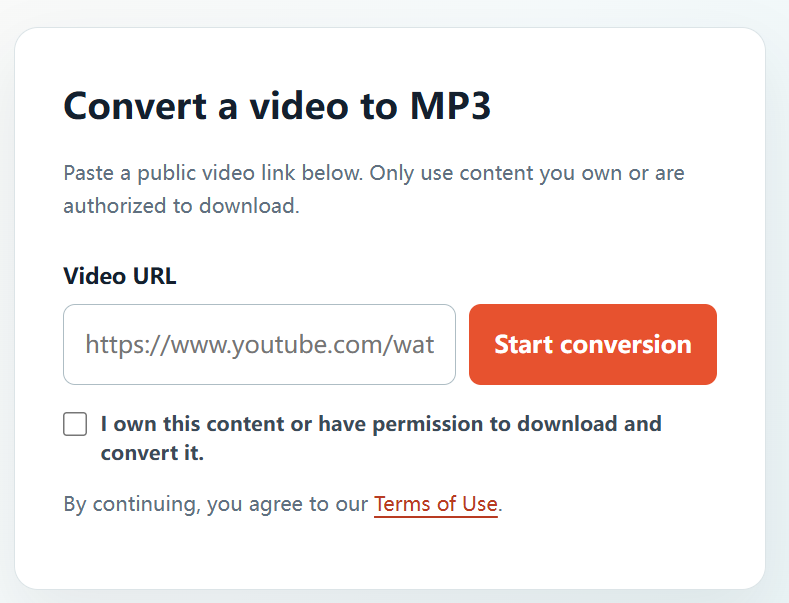
- Visit YTBMP3.NET and paste the link in the Video URL field.
- Confirm that you own the content or have permission to download and convert it.
- Start conversion and leave the browser window open.
- Select Download when the MP3 is ready, then check your Downloads folder.
Mac file-management tips
- Finder usually shows the file in Downloads after the browser saves it.
- Rename approved project audio so it is easy to identify later.
- Keep original media and rights documents together.
- Avoid closing the tab before conversion is complete.
Respect the creator and licence
The downloaded MP3 must be used only as your ownership or permission allows. Do not copy material you do not have rights to use, even if it is publicly viewable.
Frequently asked questions
Do I need Mac software?
No. You can use YTBMP3.NET in a current Mac browser for authorized public links.
Where is the downloaded audio?
Most browsers save it in the Downloads folder unless you selected another location.