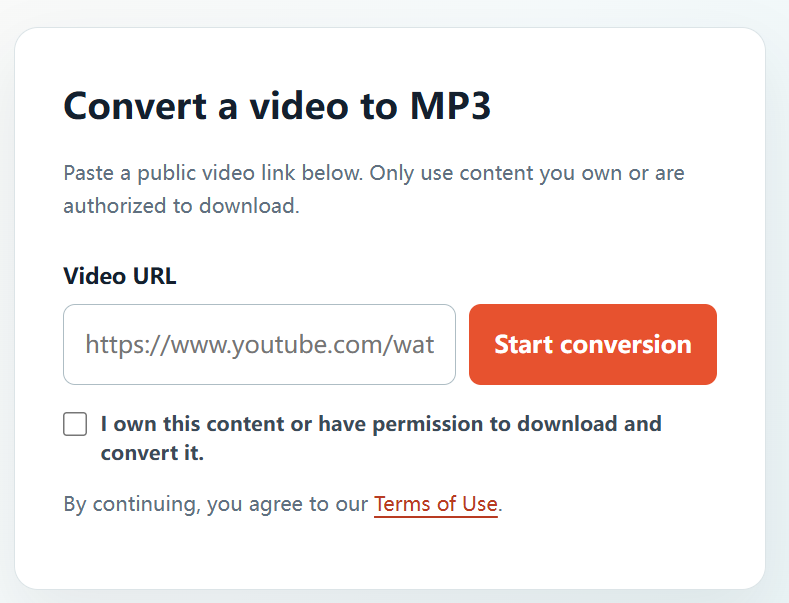
An iPhone can be a convenient place to manage audio from your own video projects. With a complete public URL and the required permission, YTBMP3.NET works in your mobile browser without a separate converter app.
What to prepare on your iPhone
Before starting, make sure you have the complete public video link, a stable connection, and a clear right to create an MP3 from the video. For your own work, keep the original recording as your archive copy.
Convert an authorized video on iPhone
- Open the public YouTube video that you own or are authorized to use.
- Tap Share and copy the complete video link.
- Open YTBMP3.NET in Safari and paste the link into the Video URL field.
- Tick the confirmation box after verifying your permission.
- Start conversion and keep the Safari tab open until the MP3 is ready.
- Use Download, then find the file through Safari downloads or the Files app.
iPhone file tips
- Check the Files app if you do not immediately see the downloaded MP3.
- Keep the Safari tab open during processing, particularly for longer videos.
- Use a clear project filename after saving the audio.
- Retain your permission or licence with the project files.
Use the downloaded MP3 within your rights
Use the saved audio only in ways allowed by your ownership, permission, or licence. Do not use conversion to reproduce private, restricted, or unlicensed media.
Frequently asked questions
Do I need to install an iPhone app?
No. YTBMP3.NET is designed to be used in a mobile browser for authorized public video links.
Where will the MP3 go?
Your browser normally saves the file to its configured Downloads location, which you can access in the Files app.